Want a different color behind your Instagram Story? You can use a solid background, choose one of Instagram’s ready-made gradients, or add a color tint without completely hiding your photo. The right method depends on what you are creating.
For a solid background, open the Instagram Story editor, select the Draw tool, choose a color and press and hold the canvas until it fills. For a text-only Story, use Create (Aa) instead. If you want to keep a photo visible, use a highlighter overlay or place the photo on top of a colored background.
Which Background-Color Method Should You Use?
| What you want to create | Method to try |
| A plain background in a custom color | Draw tool and solid fill |
| A text-only Story or preset gradient | Create (Aa) mode |
| A shared Instagram post with a different background | Background-color control in the sharing editor |
| A photo with a colored tint | Highlighter or translucent drawing overlay |
| A photo placed over a separate color or design | Colored canvas with a Photo sticker |
Instagram’s interface can vary between app versions and accounts, so a particular control may appear in a different position or under a different menu. Choose the method that matches your starting point and check the finished preview before sharing.
Method 1: Change the Instagram Story Background to a Solid Color
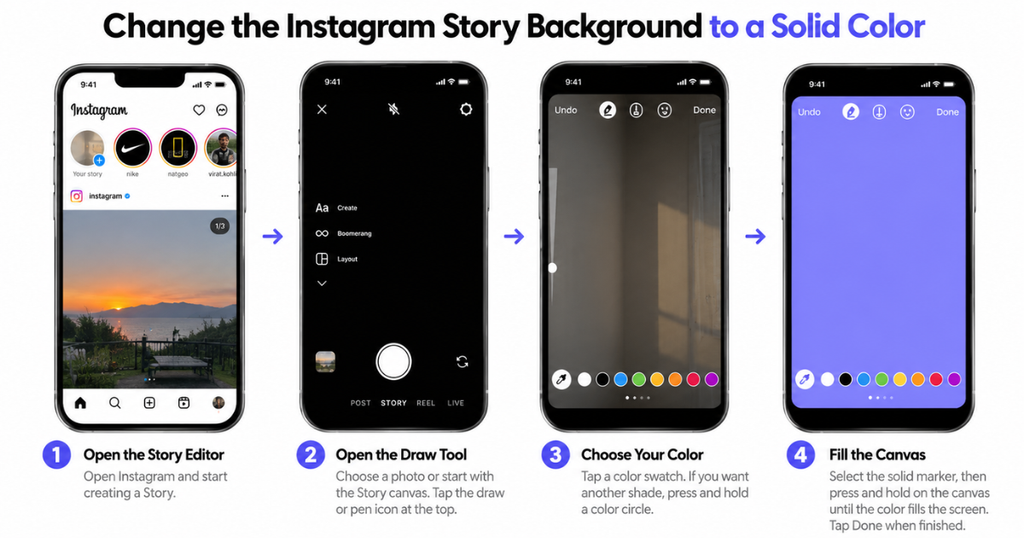
Use the Draw tool when you want a clean, solid background instead of the default appearance. This is useful for announcements, quotes, simple promotional graphics and Stories where the background should not compete with the text.
Step 1: Open the Story Editor
Open Instagram and start creating a Story. Depending on your version of the app, you can use the create button or open the Story camera from your profile or feed.
Step 2: Open the Draw Tool
Choose a photo or start with the available Story canvas. Look for the drawing or pen controls. In some versions, you may need to open the three-dot menu and select Draw.
Step 3: Choose Your Color
Tap a color swatch in the palette. If you want a shade that is not immediately visible, press and hold a color circle to open additional color options when supported by your version of Instagram.
Step 4: Fill the Canvas
Select the solid marker or pen option, then press and hold on the Story canvas until the selected color fills the screen. Tap Done or the equivalent confirmation control when it appears.
Important: A full-screen fill can cover a photo already on the canvas. If you want the color as a background and the photo in the foreground, use a colored canvas first and add your photo afterward.
Step 5: Add Your Content
Open the sticker tray and select the Photo sticker or corresponding image-upload option if available. Choose the image you want, then resize and position it with your fingers. Add your text or other stickers, check the preview and share when you are satisfied.
Method 2: Use Create (Aa) for a Text or Gradient Background
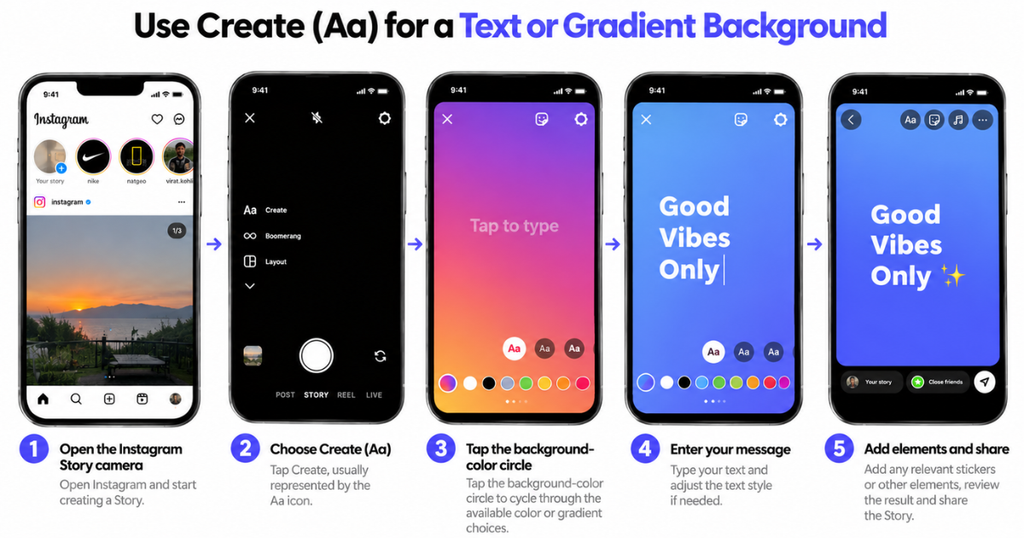
If your Story is mainly a written message, quote, announcement or question, Create mode is often the simplest starting point. It lets you work with a background without first taking or uploading a photograph. Want to explore more Story tools? See our guide on how to use Instagram features.
- Open the Instagram Story camera.
- Choose Create, usually represented by the Aa icon.
- Tap the background-color circle to cycle through the available color or gradient choices.
- Enter your message and adjust the text style if needed.
- Add any relevant stickers or other elements, review the result and share the Story.
The available backgrounds can depend on the editing interface and selected text style. If one color does not suit your message, cycle through the options before adding other elements.
Best for: Text announcements, short quotes, questions, reminders and simple Stories that do not need a photograph.
Method 3: Change the Background Behind a Shared Instagram Post
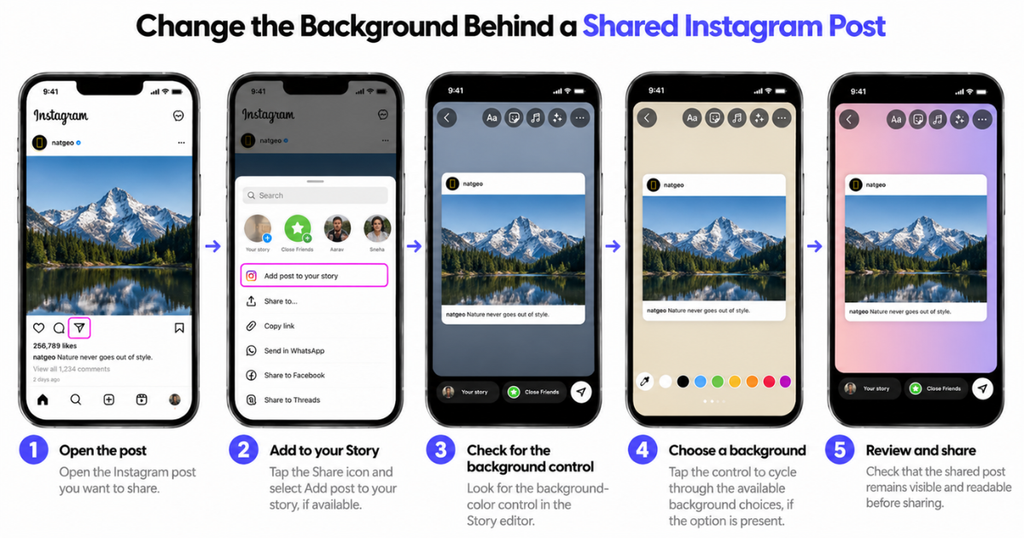
When you share an eligible Instagram post to your Story, the editor may supply a background automatically. If you prefer another appearance, first check whether a background-color control is available in the sharing editor.
- Open the post you want to share.
- Tap the Share icon and select the option to add the post to your Story, if available.
- Look for the background-color control in the Story editor.
- Tap the control to cycle through the available background choices, if the option is present.
- Check that the shared post remains visible and readable before sharing.
If your editor does not offer a suitable background control, avoid applying a full-screen solid fill over the shared post because it may hide the post card.
One alternative is to prepare a colored background and add an image of the post as a Photo sticker. However, an image of a post is not the same as a native, interactive reshare, so use the native sharing option when that functionality matters.
Background controls and sharing options can vary by app version, post type and account. If a color control is missing, use a supported alternative rather than assuming every Story editor has the same layout.
Method 4: Add a Color Tint Without Completely Covering a Photo
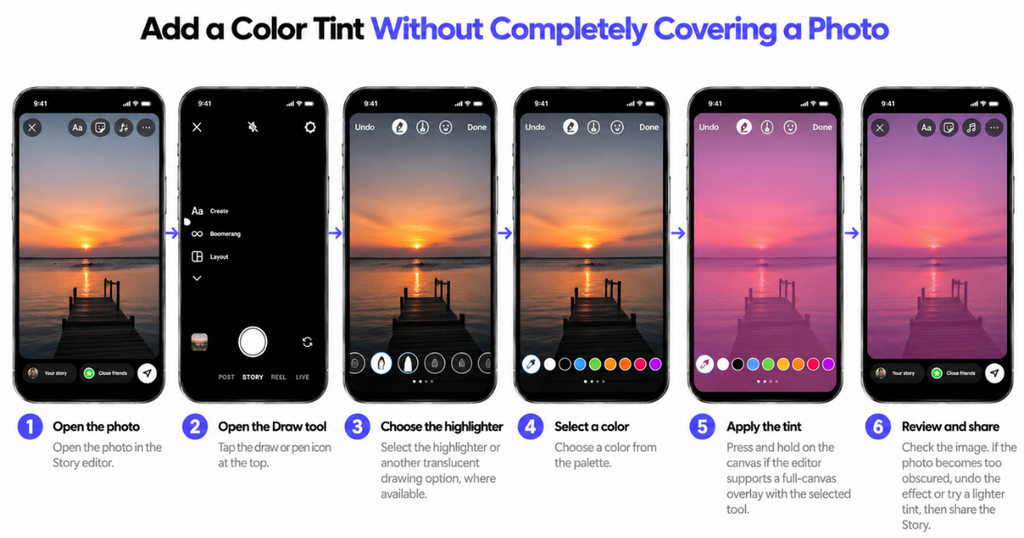
Sometimes you want to change the overall appearance of a photo without replacing the image with a solid color. A translucent drawing overlay may help achieve that effect.
- Open the photo in the Story editor.
- Open the Draw tool.
- Choose the highlighter or another translucent drawing option, where available.
- Select a color from the palette.
- Press and hold on the canvas if the editor supports a full-canvas overlay with the selected tool.
- Review the image. If the photo becomes too obscured, undo the effect or try a lighter tint.
A translucent overlay can change the mood of a photo while keeping some of its original detail visible. The result depends on the selected tool, color and opacity behavior in your version of the editor.
If you need the photo to remain completely unaffected while only the empty space around it changes color, use a separate colored background and add the photo as a foreground sticker instead.
Use Your Own Image as the Instagram Story Background
You are not limited to a plain color or a preset gradient. A photograph, a prepared graphic or a custom-designed background can also serve as the base for your Story.
- Prepare or choose the background image you want to use.
- Upload it into the Story editor and position it to fill the canvas.
- Open the sticker tray and choose the Photo sticker or equivalent image-upload option.
- Select the photo you want to place in front of the background.
- Resize and arrange the foreground image, then add text or stickers if needed.
This approach is useful when you need a particular texture, an illustration, a branded background or a color combination that is difficult to reproduce in the native editor.
For a more controlled design, create the composition in a design editor and upload the completed image to Instagram. This can be easier than trying to recreate an exact layout through Story stickers.
How to Choose a Custom Background Color
Instagram’s native color picker provides color choices beyond the first visible swatches when the expanded picker is available. The exact controls can differ between interfaces.
- For a simple design: Choose a color from the visible palette.
- For a more specific shade: Press and hold a color swatch to reveal additional choices where supported.
- For a color that matches a photo: Use the eyedropper or color-sampling control if it is available in your editor.
- For an exact brand color: Prepare the background in a design tool if Instagram does not offer the precise shade you need.
Do not assume that every version of Instagram provides a field for entering a HEX color code. If an exact brand specification matters, creating the background outside Instagram can provide more predictable results.
Troubleshooting Common Background-Color Problems
The Color Covers the Photo I Wanted to Keep
A solid fill is an overlay, so it can hide content that is already on the canvas. Undo the fill, or finish the colored background first and add the photo afterward with a Photo sticker. If you want to reveal selected parts of the original photo, check whether the editor offers an eraser tool.
The Screen Does Not Fill with Color
Check that you have selected a drawing tool that supports a solid fill. A regular drawing stroke is different from a full-canvas fill. Select the appropriate solid marker or pen, choose the color again and press and hold on the canvas.
I Cannot Find the Draw Tool
Look for a pen or drawing icon in the Story editor. If it is not visible, check the additional-options menu, where some versions place drawing controls. The labels and positions can change, so do not rely on a single icon location.
I Cannot Find Create Mode or the Color Circle
Return to the Story camera and look for Create (Aa) or the text-based Story option. If the control is missing, the interface may differ from the instructions or a feature may not be available in your current editing flow.
The Background Color Looks Different from the Shade I Selected
Check the selected brush, palette and overlay settings. A translucent tool produces a different result from an opaque one. For more predictable color matching, prepare the background image separately instead of relying on a translucent effect.
Tips for Making an Instagram Story Background Easier to Read
A good background supports the content rather than competing with it. Keep these practical considerations in mind:
- Use sufficient contrast. Light text is easier to read on a dark background, while dark text is generally more suitable for a light one.
- Keep the main subject visible. Avoid placing a full-screen fill over the photo or shared post you want viewers to see.
- Limit competing elements. Too many stickers, colors and text styles can make a Story harder to follow.
- Use consistent colors when needed. Creators and businesses can reuse a small set of colors to give related Stories a recognizable appearance. If you design Stories for promotion, learn the basics of social media ads.
- Check the final preview. Make sure the text, images and important details remain visible before publishing.
Frequently Asked Questions
Open the Story editor, select the Draw tool, choose a solid color and press and hold the canvas until it fills. For a text-only Story, open Create (Aa) and use the background-color circle instead.
Create the colored background first, then add your photo with the Photo sticker or an equivalent image-upload option. For a tinted effect rather than a separate background, try a translucent drawing tool if your editor supports it.
Open the Story camera, select Create (Aa) and tap the background-color circle to cycle through the available options. The available choices can depend on your editing interface.
Check the sharing editor for a background-color control and tap it to cycle through any available choices. If your version does not provide a suitable option, avoid using a solid fill that hides the shared post.
Do not assume Instagram’s native color picker provides a HEX input field. If you need an exact brand color and cannot select it in the editor, prepare the background in a design tool and upload it.
You may have selected a drawing tool instead of the solid-fill tool, or you may not have held the canvas long enough. Try the solid marker or pen option, select your color again and press and hold.
The same basic approaches may be available on both platforms, but tool placement and controls can differ between versions. Use the labels and options displayed in your own Story editor.